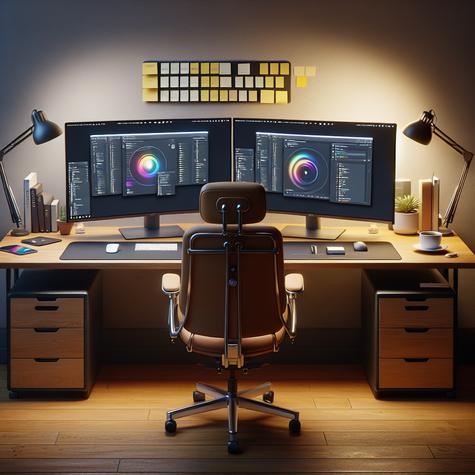
 Benefits:
1. Multitasking: Having multiple screens allows for easier, more efficient multitasking. You can spread out your applications and effortlessly move between them without minimizing and maximizing windows.
2. Increased productivity: Several studies, including one by the University of Utah, have shown that multiple monitors can increase productivity by 20-30%.
3. Streamlined workflow: Multiple monitors can simplify your workflow by allowing you to dedicate each screen to a different task or program. This can be especially beneficial for professionals who work with extensive datasets, digital editing tools, or other complex applications.
4. Gaming experience: For gamers, multiple monitors can provide an immersive gaming experience by extending the display across multiple screens.
5. Video editing and graphic design: It allows video editors and graphic designers to have editing software on one monitor and raw material or related research on another.
Process:
1. Check your computer: Make sure your computer has the necessary graphics card that supports multiple displays.
2. Connect Monitors: Connect your second monitor with the correct cables to your computer. Most modern computers and monitors use HDMI, but other connections like VGA and DVI are also used.
3. Adjust Settings: Now you need to adjust your display settings. Right click on your desktop and choose screen resolution or display settings.
4. Identify Monitors: If you are using Windows, click “Identify” to see which monitor is 1 and which is 2.
5. Choose what to do with the second monitor: On the same screen, you can choose to extend the display, duplicate it (show the same thing on both monitors), or show desktop only on 1 or 2. Choose the option that best fits your desired use.
6. Arrange Your Displays: If you choose to extend your display, you can also choose which monitor is on the left and which is on the right by dragging and dropping the numbered displays at the top of the screen resolution menu.
7. Apply the settings: Click “apply” to save the settings.
Remember, you will need to have the proper cabling (like HDMI, DVI or VGA) to connect your monitor to your PC. Cabling will depend on the available outputs on your PC and inputs on your monitor. The process may vary slightly depending on the operating system that you are using. Always refer to the user manuals of your hardware and software to ensure you are following the correct setup procedures.